
Modern tax rules in India push businesses to use digital documents fast. Many turn to SAP Business One to handle these financial needs well.
This guide shows how e invoice works in your current software. We’ll look at the steps to keep your company in line with government rules.
By following this guide, your team can link your ERP system to official portals. Learning this helps keep your operations smooth. It also makes tax reporting easier and cuts down on mistakes.
Key Takeaways
- Understand the integration of digital tax reporting within your ERP.
- Learn the essential technical steps for regulatory compliance in India.
- Bridge the gap between internal software and government portals.
- Reduce manual data entry errors through automated digital documentation.
- Ensure your business stays updated with current tax filing mandates.
Understanding the E-Invoicing Mandate in India
Tax digitization in India has reached a new milestone with the introduction of mandatory electronic invoicing. The government introduced this system to make financial reporting easier. It also reduces the chance of errors in GST compliance.
By moving to digital invoicing, businesses can file taxes more accurately. This change helps avoid mistakes in financial reports.
The heart of this rule is the need to report all invoices to the IRP portal for validation. After submitting an invoice, the portal gives a unique Invoice Reference Number (IRN) and a QR code. This makes sure every e invoice is checked in real-time. It also creates a clear trail for tax authorities to follow.
Adopting this digital workflow is key for staying efficient today. Companies that adapt these changes see faster and more accurate data. Knowing these rules is the first step to successful electronic invoicing in your company.
The following table outlines the core objectives of the current mandate:
| Objective | Benefit | Impact |
| Standardization | Uniform data format | High |
| Automation | Reduced manual entry | High |
| Transparency | Real-time validation | High |
The move to tax digitization keeps businesses ahead of rules. By linking your systems with the IRP portal, you keep your GST compliance smooth and mistake-free. Adopting the e invoice mandate is not just a must; it’s a smart step toward a better business future.
Prerequisites for Implementing E-Invoice in SAP Business One
Starting your digital journey needs a good look at your setup. Make sure your system is ready for electronic invoicing before you start. This step helps avoid problems later on.
System Requirements and Version Compatibility
Your SAP ERP must run on a version that supports the latest tax rules. Older versions might not have the needed tools for tax reports. Check if your system is up to date for India’s tax needs.
System readiness checks include looking at SAP Notes for your version. Ensuring compatibility early on saves time and avoids errors. If your version is old, updating is a good idea to follow government rules.
Registering on the Invoice Registration Portal
Registering on the IRP portal is a key step. This platform checks your tax documents. Without IRP credentials, your SAP Business One can’t send e invoice data.
After registering, you get API keys for a secure link. Keep these safe, as they’re key for data exchange with tax authorities. Here’s what you need to get ready.
| Requirement Category | Action Required | Priority Level |
| Software Version | Update to latest patch | High |
| IRP Portal Access | Register and verify API | Critical |
| Data Accuracy | Cleanse master records | Medium |
| Network Security | Enable secure channels | High |
By doing these steps first, you set up a strong base for your e invoice system. This way, your SAP ERP stays ready and follows all rules. Make sure your team has the right access before you start setting things up.
Configuring the Electronic File Manager for GST Compliance
To meet GST compliance needs, your ERP must be strong. The Electronic File Manager is key for handling tax documents. It makes your reporting smoother and keeps your financial data accurate for government use.
Installing the E-Invoice Add-on
The SAP E-Invoice add-on connects your data to the government portal. It’s important to install it right for seamless invoice automation. This tool changes your data into the right format for the Invoice Registration Portal.
Start by checking you have the latest add-on for your SAP Business One. Then, use the installation wizard to add the files. After it’s installed, your system can send tax documents from your sales modules.
Setting Up the Communication Service
A good communication service is key for safe data sharing with tax authorities. It sends your JSON files to the portal without problems. Reliable connectivity is vital for a good digital tax plan.
You need to set up API endpoints and authentication in the service manager. This lets you send data securely. With these steps, your SAP Business One talks to government servers easily. This makes your invoice automation work better.
Setting Up Master Data for Seamless E-Invoicing
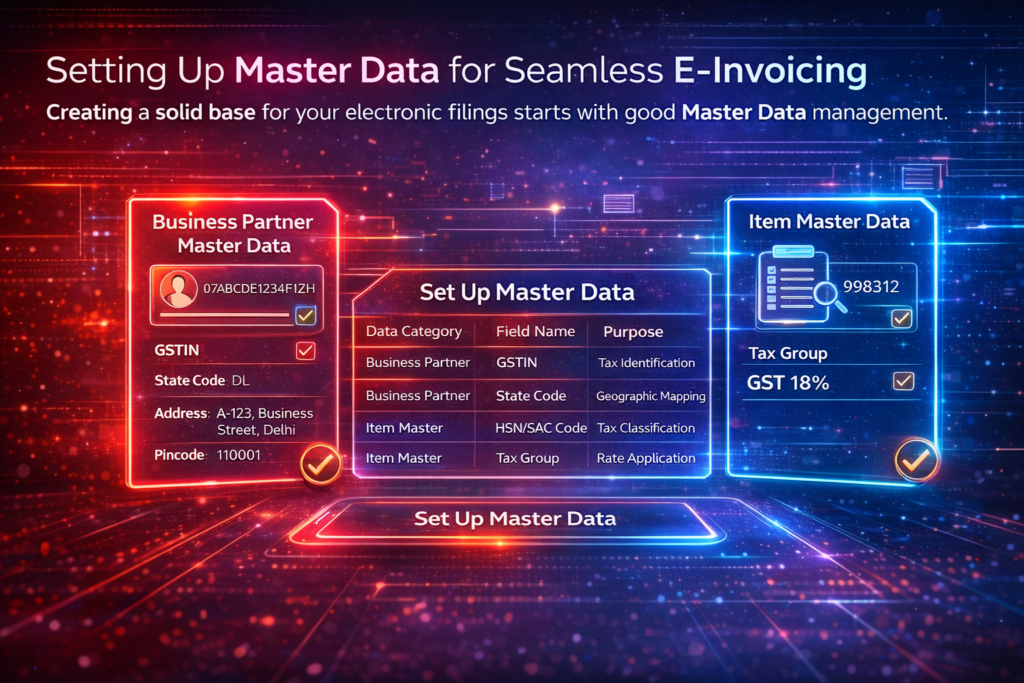
Creating a solid base for your electronic filings starts with good master data management. Accurate information in your system cuts down error risks during submission. This careful planning in invoice automation keeps your tax reporting steady and trustworthy all year.
Configuring Business Partner Master Data
The business partner master record is key for your customer and vendor info. Make sure each partner profile has a valid GSTIN for any GST invoice. Also, check that address, state code, and pincode fields match official records.
Bad or wrong data can cause the portal to reject your submissions right away. Keeping your data clean and organized helps avoid manual work. Always check the state code to meet GST rules for your area.
Defining Item Master Data for GST Reporting
It’s important to categorize your products and services right for tax rules. Each item needs the right HSN or SAC code for correct tax. Setting these up in the item master helps the system tax transactions correctly.
The table below shows key data points for compliance:
| Data Category | Field Name | Purpose | Compliance Status |
| Business Partner | GSTIN | Tax Identification | Mandatory |
| Business Partner | State Code | Geographic Mapping | Mandatory |
| Item Master | HSN/SAC Code | Tax Classification | Mandatory |
| Item Master | Tax Group | Rate Application | Mandatory |
Standardizing these fields keeps your financial operations ready for audits. Spending time on these setups now saves your team from costly troubleshooting later. Keeping data entry consistent is vital for a compliant digital system.
Mapping SAP Business One Fields to IRP Schema
To link SAP Business One with the government portal, you need to translate data well. Your system must change internal records into a certain format. This is key for accurate tax reporting and keeping up with Indian rules.
Understanding the JSON Structure
The government wants all electronic invoices in a certain JSON file format. This format is like a universal language for the IRP. It makes sure all important details, like GSTIN and invoice value, are right.
Knowing this structure is the first step to automating. When your system makes a JSON file, it turns complex data into something computers can read. This cuts down on mistakes and makes validation faster.
Customizing Field Mapping in the Electronic File Manager
The Electronic File Manager (EFM) in SAP Business One lets you adjust your data to fit IRP needs. You can make these changes to fit your business while sticking to the rules. Being precise here helps avoid submission errors.
To map your fields right, follow these steps in the EFM tool:
- Find the IRP fields you need for your invoice type.
- Match your SAP Business One fields with the schema nodes.
- Use transformation rules to make sure data formats are right.
- Check the output to make sure your tax reporting data is correct.
Getting good at this technical mapping means your data is always ready for the government. Using the EFM, you control how your business info is shown to the authorities.
Generating the JSON File for E-Invoice Submission
After setting up your system, making compliant documents is easy. This process makes sure every GST invoice is ready in real-time. It keeps your business in line with Indian laws all the time.
Creating the AR Invoice Document
Start by going to the Sales module and opening the AR Invoice window. Fill in the customer and item details, and the tax codes.
Make sure to check that all important fields, like the HSN code and GSTIN, are filled right. When you hit “Add,” the system checks your data. It makes sure it follows all the rules.
Triggering the Export Process
After saving the document, the system gets ready to make the JSON file for the government portal. You can start this process yourself or set it to happen automatically.
The software then sends the data to the tax authorities for IRN generation. If everything checks out, the portal gives you a unique IRN and QR code. The system then adds these to your record.
This efficient process keeps your GST invoice up to date and ready for audits. By automating the JSON file and IRN generation, your business cuts down on mistakes. It also speeds up the billing process.
Connecting SAP Business One to the Invoice Registration Portal
Connecting your ERP to the government portal is key for tax compliance. Security is very important when sharing financial data. A strong link keeps your business running smoothly during tax time.
Configuring API Credentials
To start IRN generation, set up your API credentials in SAP Business One. These credentials prove your identity to the IRP portal. Keep them safe in your system settings to avoid unauthorized access.
When you set up API integration, make sure to enter your client ID and secret key correctly. After saving, the system checks your credentials. This confirms your ERP can talk to the government.
Establishing Secure Authentication Channels
You also need to create secure channels for data transfer. Use Transport Layer Security (TLS) protocols to keep your data safe online. This layered security is key for your electronic invoices.
The table below shows what you need for a secure link between your SAP system and tax authorities.
| Security Component | Purpose | Implementation Status |
| API Secret Key | Authenticates the ERP request | Mandatory |
| TLS 1.2 Encryption | Protects data during transit | Mandatory |
| OAuth 2.0 Token | Manages session authorization | Recommended |
| IP Whitelisting | Restricts server access | Optional |
By following these steps, your IRP portal interactions will be stable and compliant. Regularly check your API integration settings to avoid problems. This setup makes IRN generation smooth for all your invoices.
Handling Digital Signatures and QR Code Integration
SAP Business One has tools to add security to every invoice. This is key for tax compliance in India. It makes sure your invoices are legal and safe from fraud.
Applying Digital Signatures to Outbound Documents
A digital signature is like a digital seal. It proves your invoice is real. SAP adds this signature to your invoices automatically.
Your system needs a valid certificate from a trusted authority. With this, the digital signature is added to invoices right away. This makes your financial info safe and correct.
Rendering the QR Code on Printed Invoices
The QR code shows important invoice info, like the Invoice Reference Number (IRN). Make sure it’s clear on printed invoices for easy scanning.
Designing your invoices well is key for a good QR code. Here are some tips:
- Placement: Put the code in a clear spot, like the top right corner.
- Resolution: Use dark colors on light backgrounds for the best readability.
- Size: Keep it at least 2cm by 2cm for easy scanning.
- Testing: Check that the code works right with government portals.
By following these tips, your invoices will meet Indian GST rules. Being precise helps avoid payment delays and audits.
Managing Cancellations and Credit Notes in the E-Invoice Workflow
Keeping accurate financial records is key. You need to know how to change documents after they’re sent. This e-invoicing workflow keeps your data in line with rules.
Processing IRN Cancellations
Big mistakes or cancelled transactions need an invoice cancellation fast. In India, you have just 24 hours. You must cancel it from SAP Business One to tell the IRP.
After the IRP says okay, your IRN will show as “Cancelled”. Always check the status to make sure it worked. Not getting a confirmation can cause problems later.
Issuing Credit Notes Against E-Invoices
For valid but smaller transactions or returns, use a credit note. Link it to the original IRN for clear records. SAP Business One lets you keep GST reports right.
Right document mapping shows tax authorities your business changes. This avoids return rejections and keeps your compliance score up. Here’s a table to guide you.
| Scenario | Action Required | Time Limit | Impact on GST |
| Incorrect Buyer Details | Invoice Cancellation | 24 Hours | Nullifies Original |
| Return of Goods | Credit Note | No Limit | Reduces Tax Liability |
| Price Adjustment | Credit Note | No Limit | Adjusts Tax Amount |
| Transaction Cancelled | Invoice Cancellation | 24 Hours | Nullifies Original |
Troubleshooting Common Errors During E-Invoice Generation
When your SAP ERP system has problems, it’s key to know how to fix them fast. Even with everything set up right, users might run into issues. Proactive monitoring helps your team avoid long delays and keeps your tax work smooth and up to date.
Resolving Validation Failures
Validation errors happen when your data doesn’t match what the government portal needs. These problems often come from missing or wrong data in your SAP E-Invoice add-on. Always check your data, like GSTIN numbers and HSN codes, before sending it out.
If a document doesn’t pass validation, look at the error logs to find out why. Fixing the data in your business partner or item master records usually fixes the problem right away. Keeping your data clean is the best way to avoid these errors.
Handling API Timeout and Connectivity Issues
For API integration to work, you need a steady connection to the Invoice Registration Portal. If you get timeouts, it might be because of too much traffic or network problems. Make sure your internet settings are right and your firewall lets traffic through.
If you can’t connect, check your API integration details to make sure they’re current. Update your authentication tokens in the SAP E-Invoice add-on regularly to avoid service breaks. If you’re stuck, check the portal’s status page to see if it’s a server issue affecting your SAP ERP.
| Error Category | Common Cause | Recommended Action |
| Schema Validation | Incorrect Data Format | Update Master Data |
| API Timeout | Network Congestion | Retry After Delay |
| Authentication Error | Expired Credentials | Refresh API Keys |
| Connectivity Failure | Firewall Restriction | Check Network Access |
Conclusion
Using automated systems in SAP Business One is a big step towards full tax digitization. It cuts down on mistakes and keeps your business in line with India’s laws.
You now know how to handle your e-invoicing workflow well. Keep an eye on your system settings to stay ready for new rules. This way, your financial work stays smooth.
Using these digital tools makes your financial team more efficient and clear. Your team can work on growing your business instead of just entering data. Start making your processes better today to stand out in the market.
We encourage you to share your experiences or ask for more help. Your feedback helps us make better resources for the SAP community. Keep your software up-to-date and your team trained to stay ahead.